How to Prepare a Digital Pet Portrait for Printing
Before ordering a print, check the downloaded file's pixel dimensions, the crop and your printer's requirements. PetArtGen supplies a digital portrait for personal use; you arrange printing, framing and delivery yourself.
First approve your pet's likeness using the preview checklist. Then work from the unlocked download, not a screenshot of the watermarked preview.
Match the file to the print size
Open the file's properties or an image editor and note its width and height in pixels. Give those dimensions and your intended print size to the printer. Ask what pixel density it recommends for that material and viewing distance.
The calculation is simple: pixels ÷ pixels per inch = inches. For example, a hypothetical 2,000-pixel-wide file at 200 pixels per inch corresponds to a width of 10 inches. That is a calculation example, not a recommended size or a sharpness guarantee for your portrait.
Adobe's explanation of printed image resolution describes how pixel dimensions, resolution and print size relate. Changing a resolution label alone does not add image detail. PetArtGen enlarges the generated artwork for download; interpolation cannot recover missing fur detail. Let the printer's advice and a proof guide the final size.
Choose a crop that leaves room
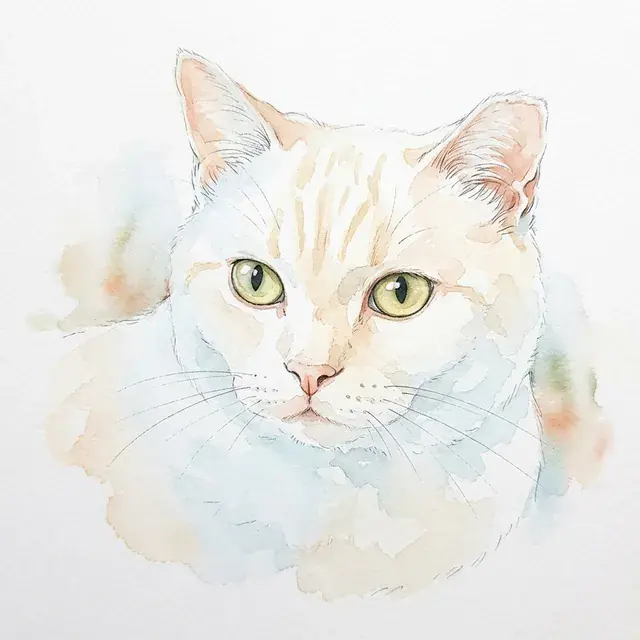
In this PetArtGen sample, the ears sit near the upper part of the composition. When preparing a portrait like this, check the space above both ear tips after cropping and ask how much the frame or mount will cover. Soft watercolor edges are part of the style; inspect facial detail separately.
PetArtGen offers square, portrait, landscape and phone-wallpaper crops. Choose the closest shape, then open the actual downloaded crop. A tall wallpaper crop may remove details you want in a framed print.
Ask the printer whether its ordering tool crops automatically, supports borders and allows a safe area for trimming. If the crop cuts off an ear or a marking, choose another crop or frame shape, or ask about a layout with borders.
Check a proof before ordering
Use this checklist on the printer's proof:
- The correct portrait, orientation and physical size.
- Both ears, important markings and any added name or dates remain visible.
- Borders and the area beneath the frame or mount look intentional.
- Any low-resolution warning has been discussed with the printer.
- Material, quantity, price and delivery arrangements match your order.
An on-screen proof checks layout, not the feel or color of a physical print. If those matter, ask for a small test print. If the artwork looks too soft, consider a smaller size rather than relying on more enlargement.
Keep the use personal
The PetArtGen terms allow personal-use prints and gifts, but exclude resale and commercial use. Printing costs are separate from your digital portrait purchase.
Ready to make the artwork? Start in the portrait studio, choose the portrait you want to keep, and check the downloaded file before ordering the print.