How to Check an AI Pet Portrait Preview Before Unlocking
Keep your original photo beside the preview. Before unlocking, check four things: eyes, coat markings, ears and framing. A painting can look attractive while losing the features you recognize.
Unlocking removes the watermark from this artwork; it does not generate a corrected portrait. Make your decision from the preview you can see.
Compare the features you know
Start with two or three details that matter to you: a pale eye, a white muzzle patch, a folded ear. Then work through them one at a time.
- Eyes: compare each eye's color, shape and position. If their colors differ, check that the difference stays on the correct side.
- Markings: follow patches around the forehead, muzzle, chest and ears. Brushstrokes can simplify fur, but a missing patch or an added stripe can change the likeness.
- Ears and face: check the ear tips and folds, muzzle width and nose length. Looking like the same breed is not enough to look like your individual pet.
If the watermark covers a detail or the uploaded photo is blurred, that detail is uncertain. Paying cannot establish whether it is correct. A clear photo with visible eyes and space around the ears gives you more to compare.
Look past the costume
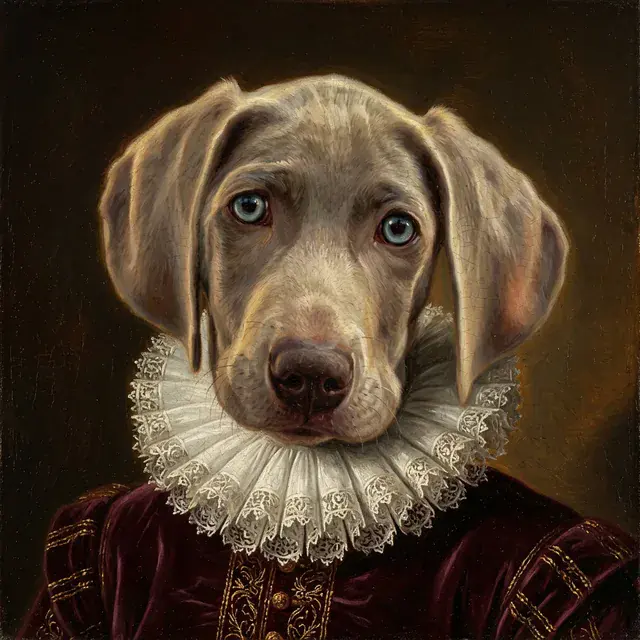
In this PetArtGen sample, start with the blue eyes and the outlines of the floppy ears. Compare those with your own pet's photo before judging the costume. The pale lace collar is clothing, not a white chest marking; check where the jaw meets it so the costume does not distract you from the face.
This is a generated sample, not a likeness comparison with your pet. Use your uploaded photo as the reference.
Check the whole frame
Step back and ask:
- Is the pet the first thing you notice?
- Are both ears and the important markings inside the image?
- Are there extra animals or objects you do not want?
- Does the pose suit the portrait you want to keep?
- Is there enough room for your intended download crop?
For a single-pet portrait, start with a photo of that pet alone. A photo containing several animals may produce a composition with more than one.
Choose before you unlock
If an essential feature is wrong, leave that result at the preview stage. You can try another suitable photo or style within your available preview allowance. A new generation is a new attempt, not a guaranteed correction.
If the portrait feels right, check the current pricing and unlock options. Previews can be tried without an account; unlocking and downloading require signing in and paid credits.
Return to the portrait studio to try your photo. Planning a framed print? Read the printing checklist before choosing a crop or ordering a physical product.